 GTA 6 Dropped Truck
What does the
Dropped Truck effect do?
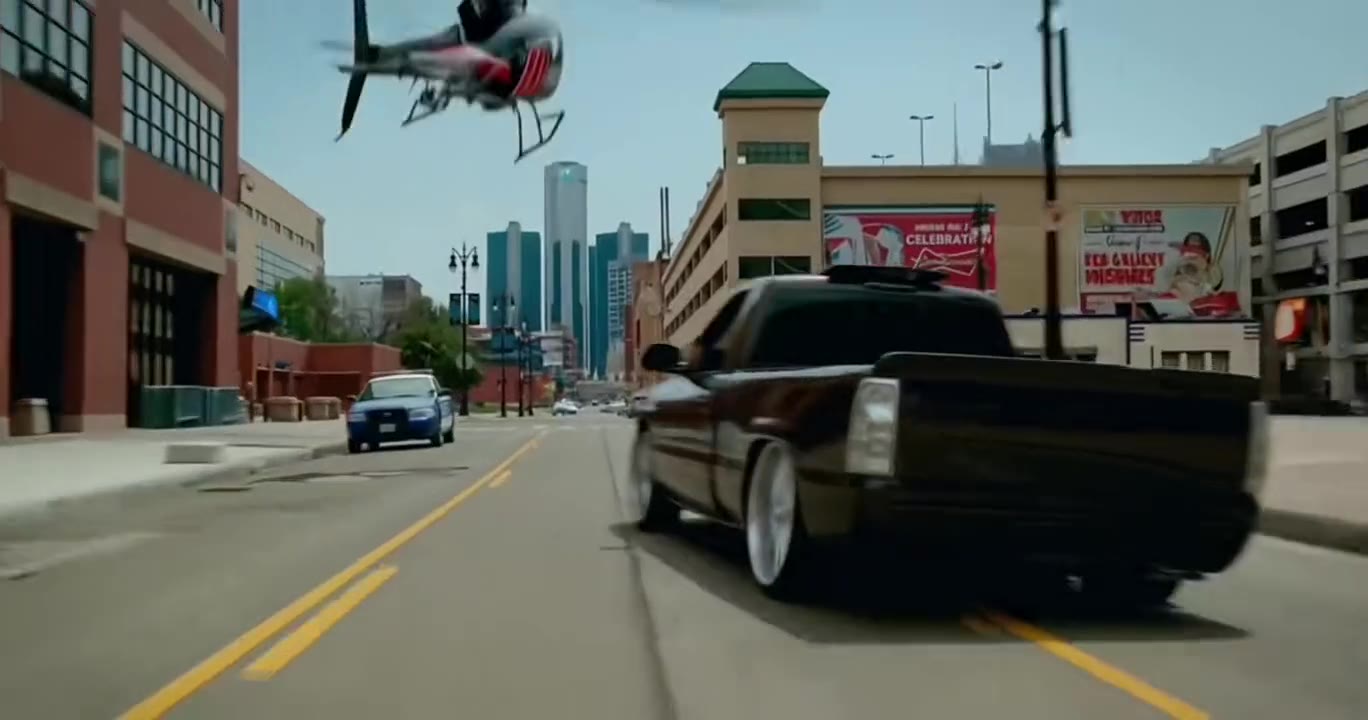
This version of the trend uses a lowered pickup, downtown driving shots and a smoky drift. The generator uses your truck photo to guide a replacement of the featured vehicle in that prepared clip.
The instructions ask the edit to preserve the surrounding street, other traffic, lighting, camera movement and cuts. That is the goal, not a frame-by-frame guarantee. AI can alter details outside the truck as well as parts of the truck itself.
Give the model
a truck it can see.
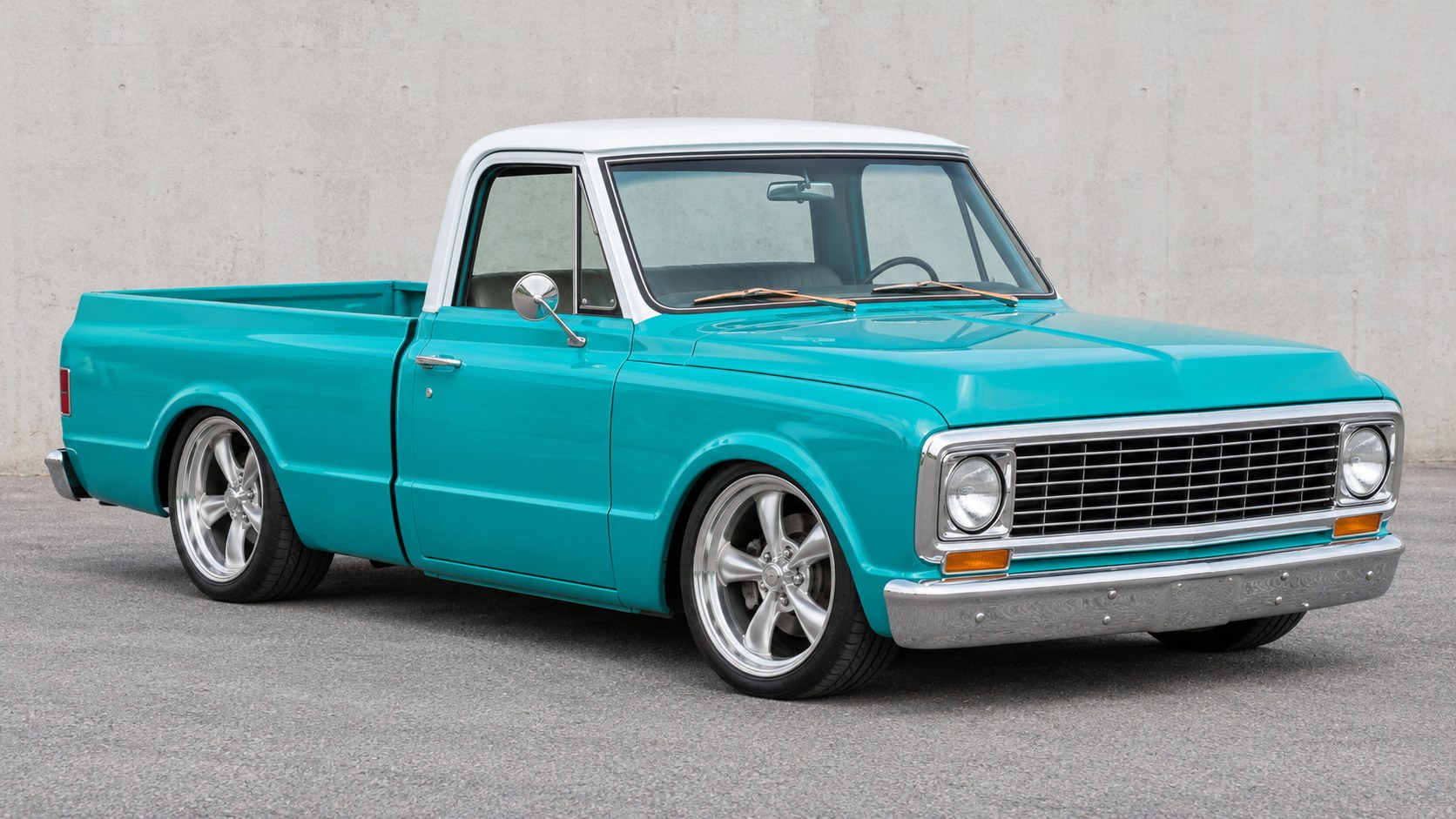
Start with one sharp photo of one pickup. A front three-quarter view reveals the grille and side of the vehicle together. Keep the full body and visible wheels inside the frame, and use a photo you own or have permission to use.
- File: one JPG, PNG or WebP, up to 15 MB.
- Framing: include the roof, bed, grille and wheels.
- Light: choose even light so the paint and body are visible.
- Obstructions: avoid people, fences or another car covering the pickup.
A close-up of only the grille leaves the rest of the truck for the model to infer. A larger file cannot recover details that are blurred or missing in the original image.
Upload once.
Let the template set the scene.
- Open the generator. Watch the Sample first to confirm this is the scene you want.
- Add your truck photo. Select the upload area and check that the correct image appears.
- Review the output settings. This template uses 720p and a roughly 10-second sequence. Duration is guided by the reference; it can vary slightly in the result.
- Select Generate video. Your task appears on the right. The reference video and replacement prompt are supplied automatically.
YOUR PHOTOIllustrated workflow: your photo becomes the input for a task in the studio.
You do not need to upload a video, enter a prompt or choose a ratio. Processing runs on the backend, so a started job can continue after you close the page. Return using the same browser and keep its site data so the task history can be restored.
Watch the whole clip.
Not just the first frame.
Here is the existing output from our turquoise-truck test. Compare it with the input photo above and the reference in the studio. A single example illustrates the workflow; it does not guarantee identical quality for every truck.
Check paint, roof, grille, body proportions and wheels across the clip.
Watch turns and smoke. Check whether other traffic, buildings or camera motion changed.
Pause at different points and use full screen. An edit that looks right at the beginning may drift during fast movement or a change of camera angle.
Play it. Check it.
Download the MP4.
Open Tasks to find your completed video. The player provides playback, seeking, volume and full-screen controls where supported by your browser. Download saves the MP4 through the browser.
Download your finished file within the stated seven-day availability period. The output follows the reference’s landscape framing. If you later crop it for a vertical post, preview the crop so the truck stays in frame.
Regenerate restores the input photo. It does not automatically submit another job. Review the image and choose when to start again.
Read the generation and download FAQ ↗Improve the input.
Check the task state.
The truck does not look like mine.
Try a clearer photo showing the whole pickup. Check whether the important details are visible in the image rather than assuming the model can reconstruct them.
The background changed.
The prompt targets the truck, but the model can still change surrounding details. Compare against the reference and decide whether the result is usable; exact scene preservation is not guaranteed.
The task says failed or review.
A review state is not a completed video. Check the existing task before starting another. Regenerate only restores the original photo; another submission is a separate generation.
The clip looks soft.
Check the uploaded photo and the actual downloaded file. Enlarging a 720p video or tightly cropping it can make softness more visible.
Bring your pickup
into the picture.
Start with the sample, choose a clear photo and review the full edit before sharing.
Create your truck video ↗